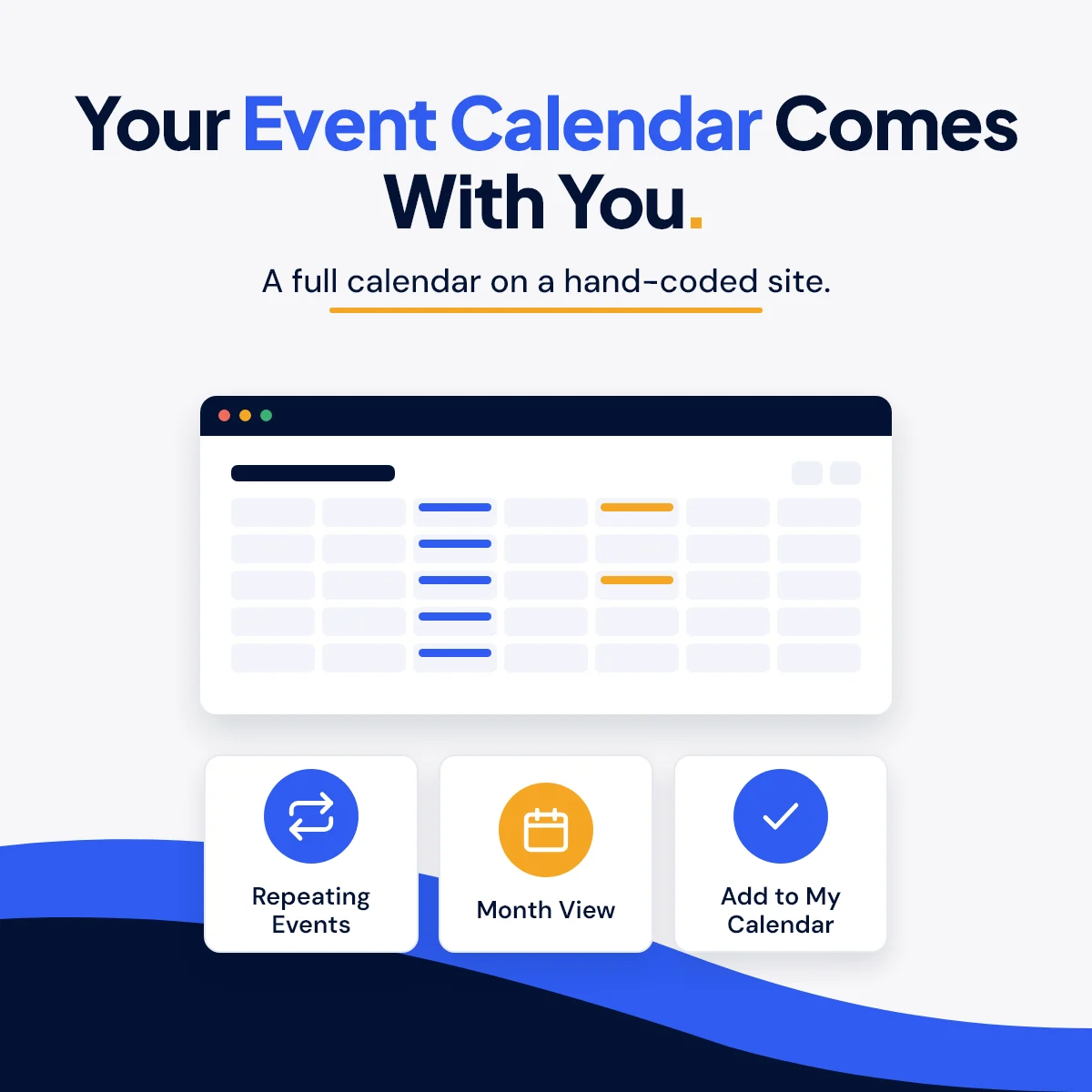
Your Event Calendar Comes With You
"But what happens to my event calendar?"
It's the first question I get when I talk with a business or nonprofit about leaving WordPress. And it's a fair one. For a lot of organizations, the events calendar is the busiest page on the site. It's where people find the fundraiser, sign up to volunteer, and check what's happening this weekend.
Here's the short answer: the calendar comes with you. A hand-coded website can have a full events calendar, and staff can still add events themselves without calling anyone.
What the calendar does
Everything people expect from a good events page is there:
- A list view and a month view. Visitors can scroll upcoming events or flip through the calendar month by month.
- Filters. One tap shows only fundraisers, only workshops, or whatever event types you use.
- Repeating events. Set something up once as "every month on the 2nd Thursday" and every date appears on its own, with any skipped dates left off.
- Its own page for every event. Date, time, location with directions, cost, who's hosting, a photo, and a button for tickets or registration.
- "Add to my calendar." One click adds the event to Google Calendar, Outlook or an iPhone calendar.
- A subscribe feed. Your regulars can subscribe once, and new events show up in their own calendar on their own.
- Google-friendly event details. Each event carries the information Google uses for event listings in search.
- Past events roll off. When an event is over, it moves to a Past Events page on its own. Nobody has to remember to take it down.
How staff add an event
This is the part people worry about, so here's exactly how it works.
Your staff sign in with their email address. There's no password to remember and no technical account to set up. They get a sign-in link by email, click it, and they're in.
From there, adding an event is a simple form: event name, start and end, location, event type, cost, ticket link, a photo and a description. They pick the location, event type and host from a list. If you start holding events somewhere new, they add the new venue once and it's in the list from then on.
They click Save, and the event is live on the website in about a minute.
What you gain over a WordPress calendar plugin
- No plugin to update. WordPress calendar plugins need regular updates and yearly license renewals, and an update can break the calendar or the rest of the site. A coded calendar has nothing to update.
- Fast pages. Event pages are built ahead of time, so they load quickly, especially on phones.
- Nothing to hack. There's no plugin and no database behind the calendar for anyone to break into.
- Everything is yours. Your events live in your own account, with a full history of every change. Nothing is locked inside a plugin.
The honest trade-offs
- A short wait to publish. A saved event takes about a minute to appear on the site, not the instant you click Save.
- A form, not drag-and-drop. Staff fill in fields rather than dragging boxes around a page. Most people find that simpler, but it's different.
- Ticket sales stay where they are. The calendar links to Eventbrite, your donation platform or wherever you sell tickets today. It doesn't process payments itself.
See it for yourself
I built a working demo for a made-up community center so you can click around and try everything above:
Try the live events calendar demo
If your events calendar is the thing keeping you on WordPress, let's talk. I can show you how your current events would carry over, and what it would look like for your team to keep it up to date.
Is your events calendar what's keeping you on WordPress? Let's talk about moving it.
Start a ProjectMore from Insights